
Could an unvetted device be the gateway for your network’s next big security breach? As businesses expand, the influx of connected devices – from laptops and smartphones to IoT gadgets – creates a complex security challenge.
It’s critical to set robust network controls, as any device can introduce malware, ransomware, and other cyber threats when connecting to your network. Ideally, antivirus software should be a mandatory control, requiring it to be active on any device attempting access. Antivirus won’t catch everything, but it adds a valuable layer of defense.
Yet it remains difficult to manage such secure controls without disrupting workflows or adding significant overhead for IT departments. Organizations need a solution that not only enforces access policies but also provides a user-friendly experience for both administrators and end-users. NetBird offers this balance, providing seamless network control through a unified, open source platform that simplifies private network configuration and remote access management.
Secure Every Connection with NetBird
NetBird takes network security to the next level by combining the simplicity and power of WireGuard with a user-friendly, open source network security platform. Designed for seamless integration and transparent operation, its zero-configuration approach makes managing network access a breeze.
In this guide, we'll show you how to set up NetBird and create a posture check that enforces antivirus requirements effectively and easily – keeping your network safe from potential threats. Here's what we'll cover:
- What are posture checks, and what types are available with NetBird.
- How to install the NetBird agent on your device.
- How to create and configure a process check from the NetBird dashboard.
- How to add your new process check to a network access policy.
By the end of this tutorial, you’ll have a network security setup that denies access to any device unprotected by antivirus software.
What are Posture Checks?
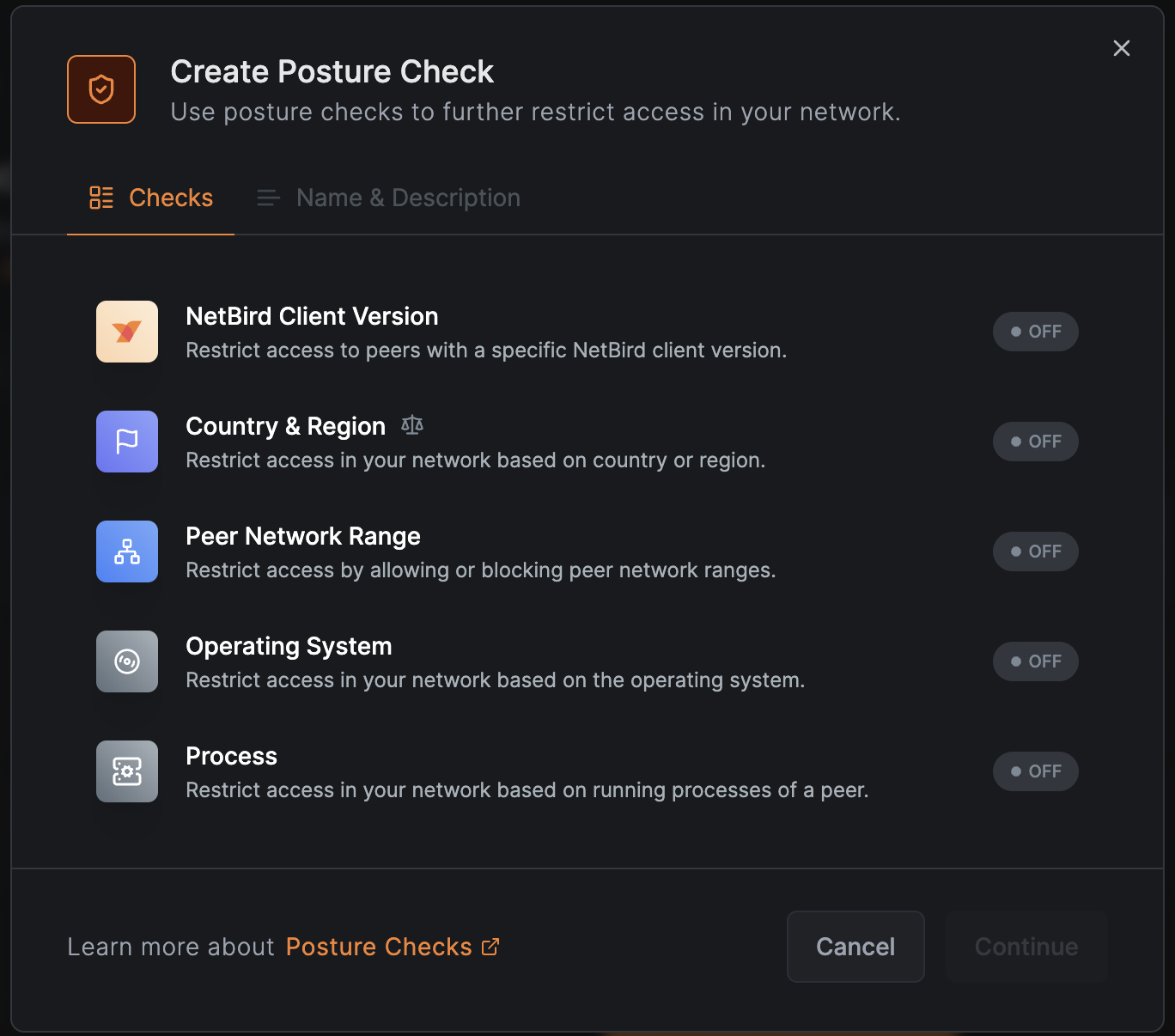
Posture checks enforce your security policies by verifying specific conditions on devices attempting to connect to your network. NetBird offers a range of posture checks that can be combined to build robust security policies:
-
NetBird Client Version check - Devices must have a specific version of the NetBird client.
-
Geolocation check – Uses IP addresses to permit or block access based on location.
-
Operating System check – Devices must have a specific OS and version.
-
Peer Network Range check – Access is restricted to approved IP ranges.
-
Process check – Verifies if a specific process is running.
Today, our focus is on the Process check. While it’s often used to verify that an antivirus program is running, it’s also versatile enough to check for other critical processes. For instance, you could use it to confirm that firewall software or endpoint protection agents are active on a device.
How to Create a Process Check with NetBird
Step 1: Install the NetBird Agent
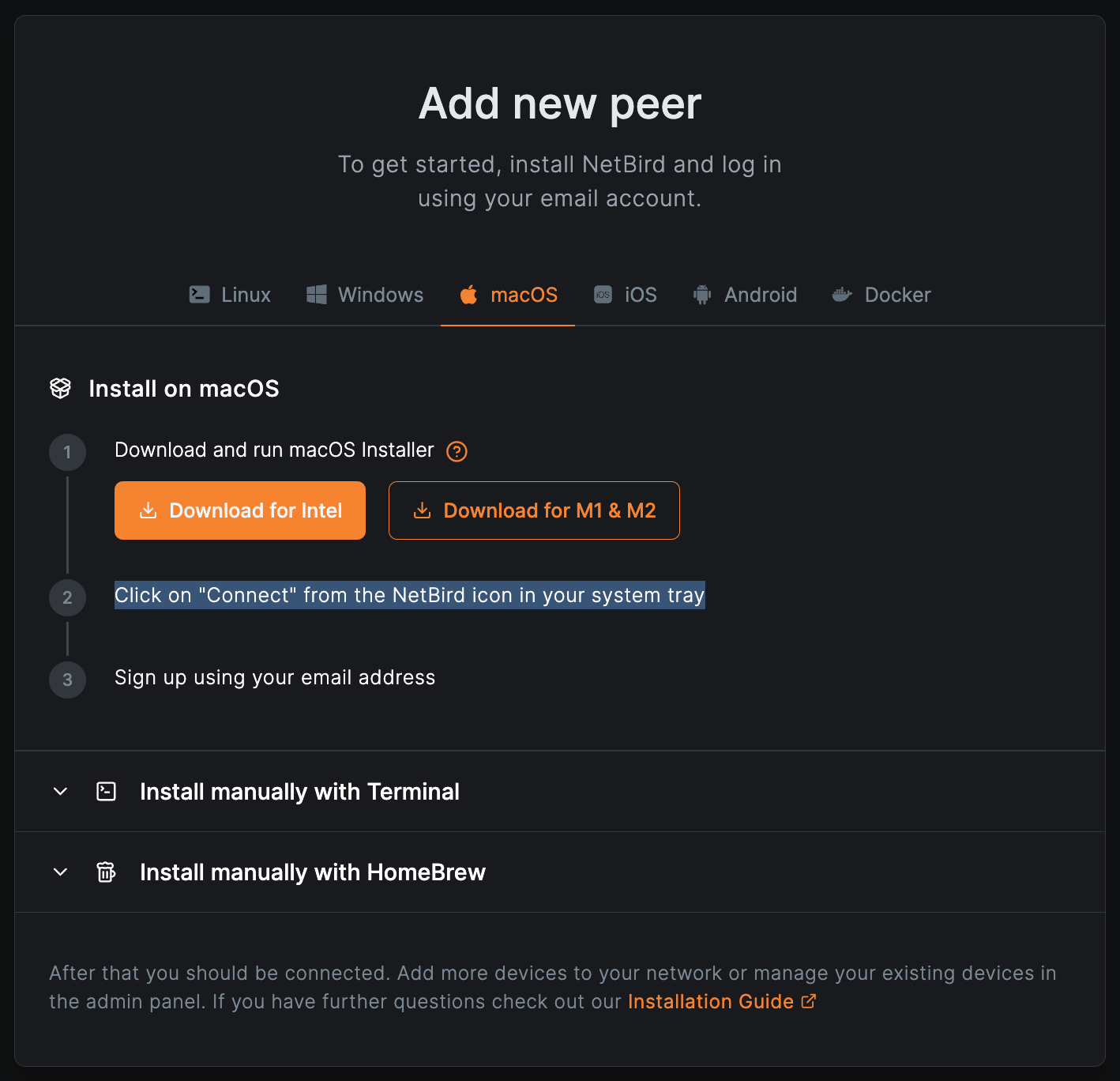
Start by installing NetBird on your machine. Follow the appropriate steps for your operating system. This installation includes NetBird's GUI and CLI, which you will use to manage and control the agent. You can find the detailed documentation here.
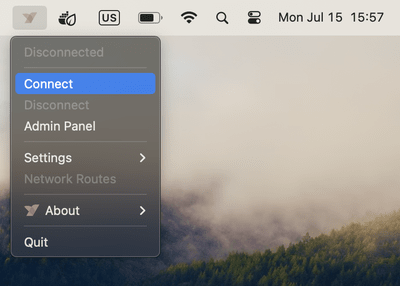
To authorize NetBird and connect your local machine to the peer-to-peer (P2P) network, use the Systray application and click “Connect”. Alternatively, you can use NetBird CLI and run the command in your terminal.
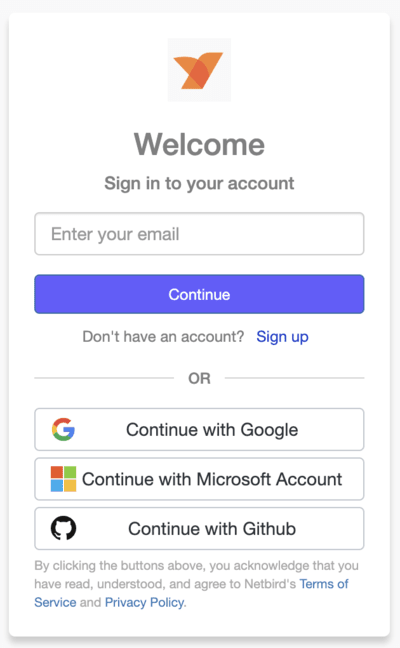
The application will redirect you to the NetBird login page. You can choose your identity provider of choice to create an account. If your identity provider supports multi-factor authentication (MFA), you will be prompted to pass the MFA challenge.
Once authenticated and connected, your local machine will appear in the Peers dashboard.
Step 2: Create and Configure a Process Check
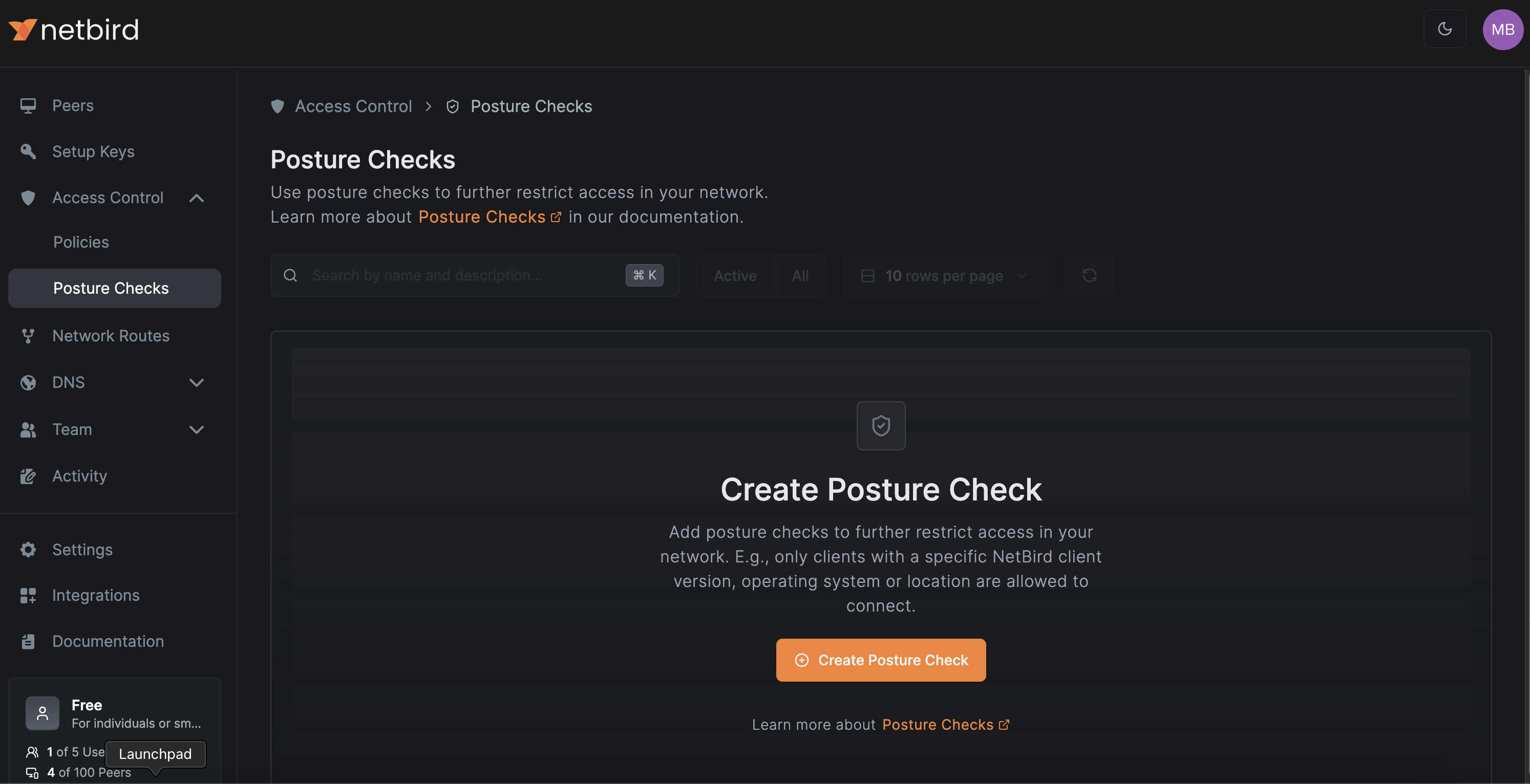
To create a process check, navigate to the Access Control tab in the sidebar and select the Posture Checks subsection. In the Posture Checks view, click the Create Posture Check button:
Select the Process option from the list:
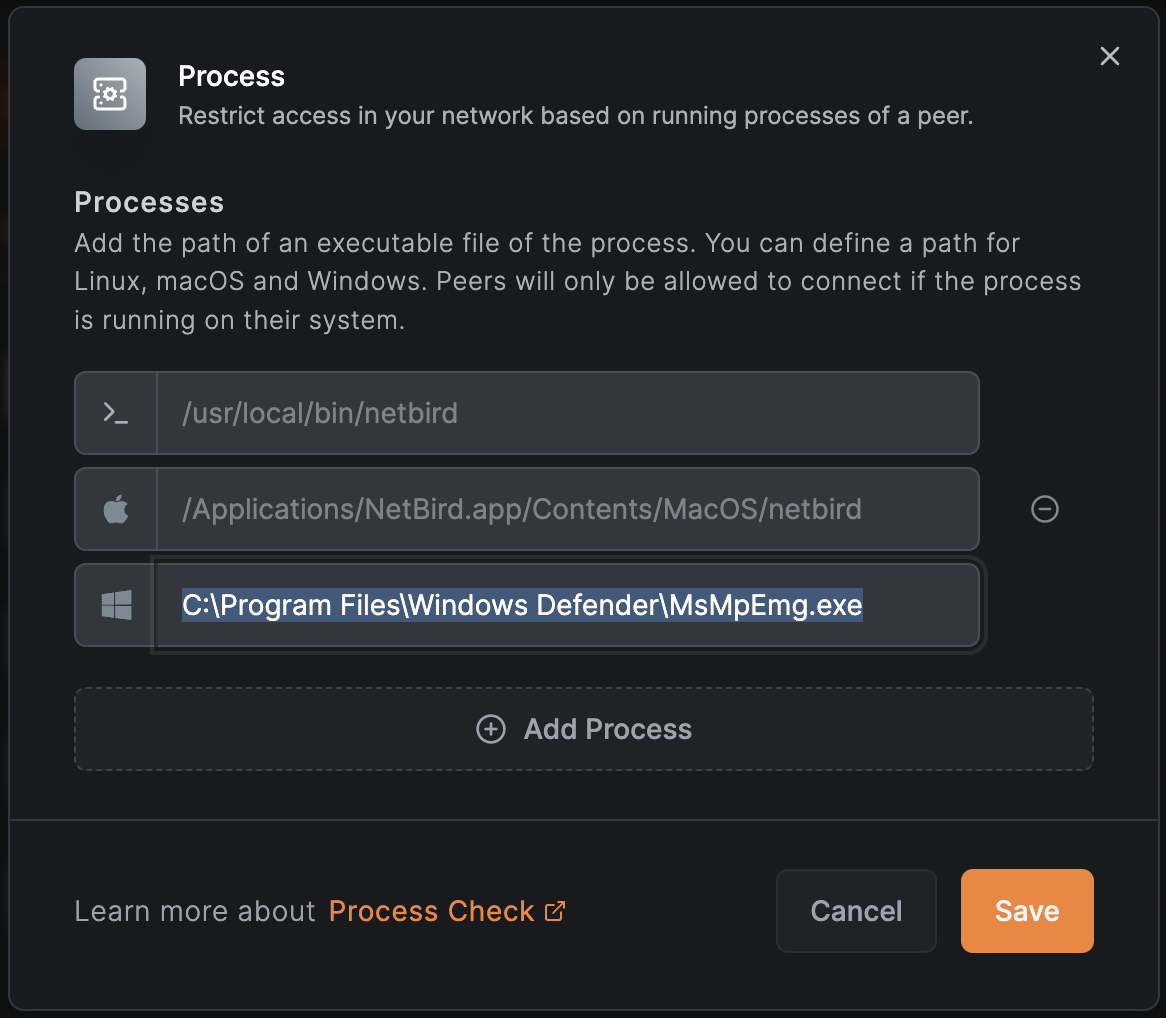
Now you need to specify the exact path of the required antivirus software. You can define paths for Windows, Linux, and macOS. If you don’t specify paths for certain operating systems, NetBird will block access for those systems by default. For example, if you specify a path for Windows only, access will be denied for all users on Linux or macOS machines. Since Android and iOS don’t support process checks, these OSs will always be denied.
You can also click Add Process if you’d like to add more than one antivirus program.
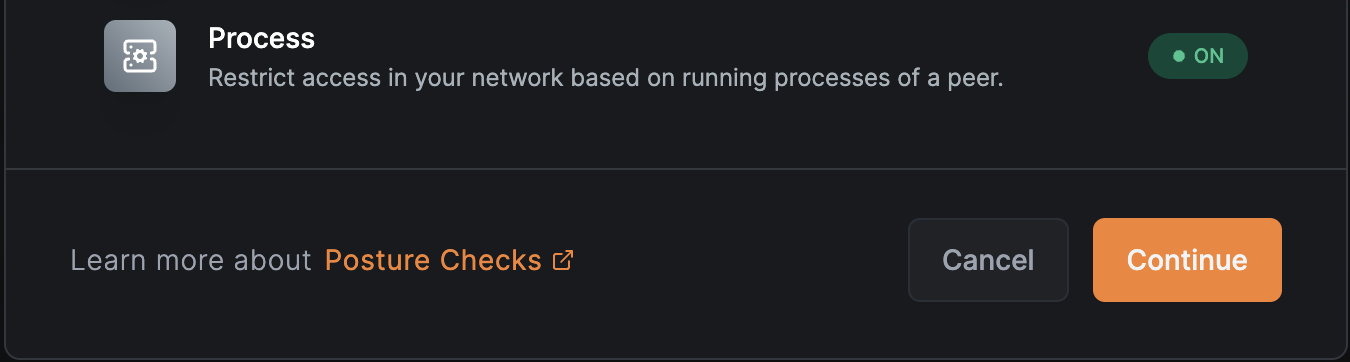
Click Save to toggle on the Process check. Then click Continue.
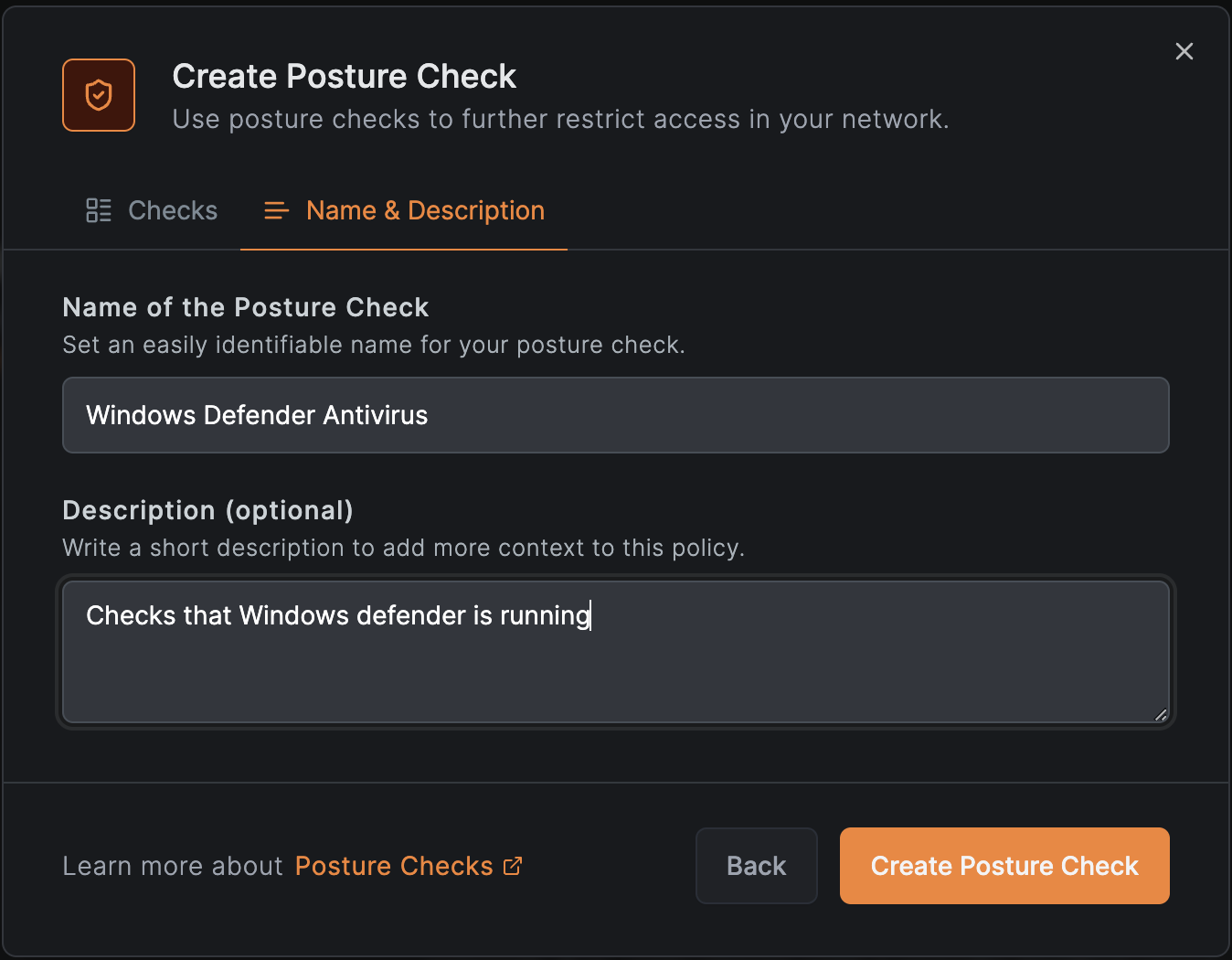
Enter a clear and concise name for the posture check and provide a brief description explaining its purpose. When finished, click Create Posture Check.
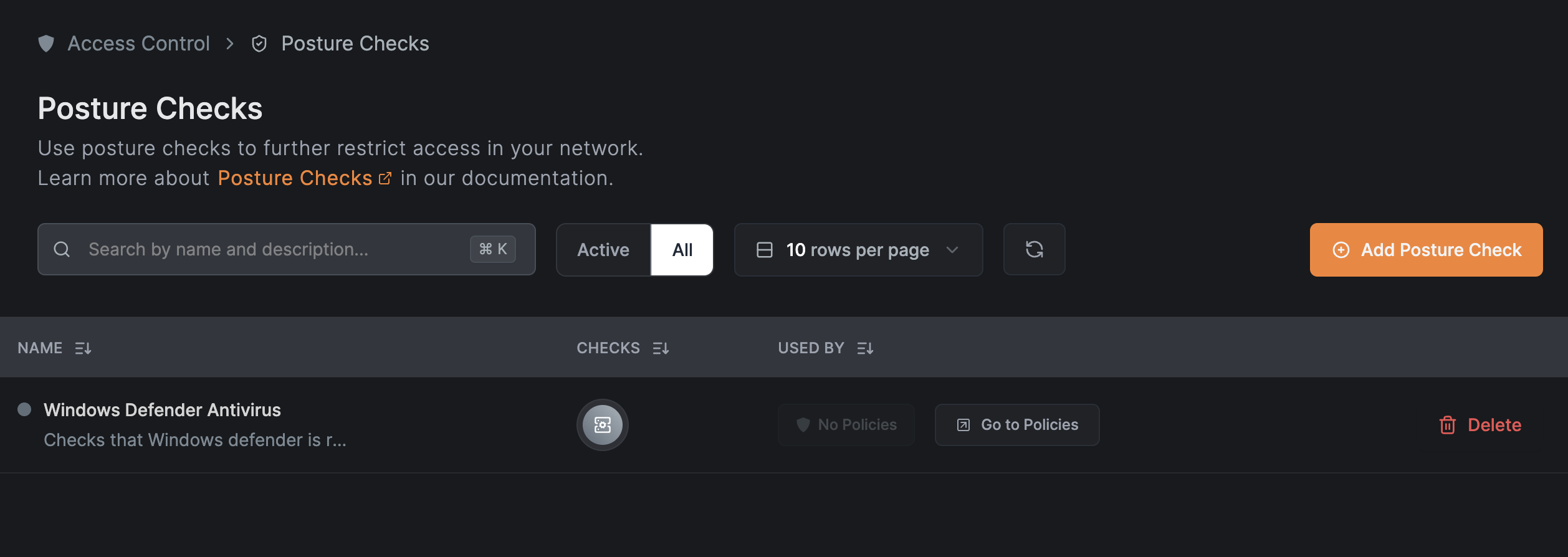
You should now see your new posture check listed in the Posture Checks view:
Step 3: Adding Posture Checks to Policies
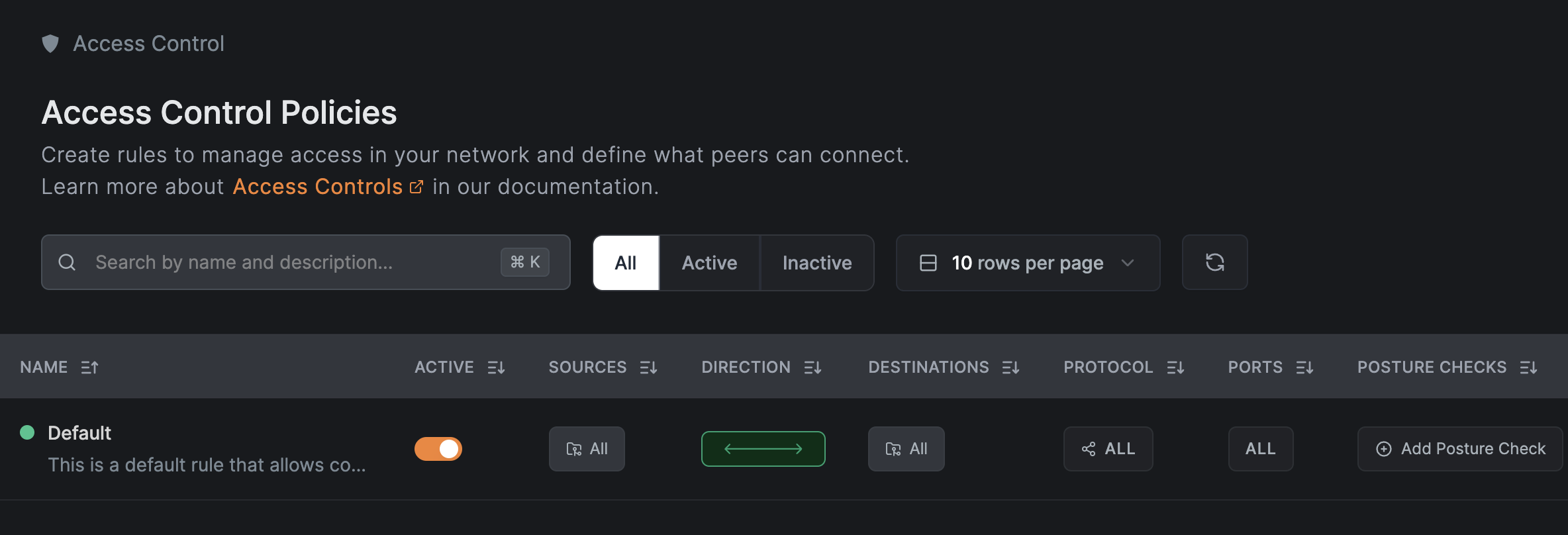
You may notice that the new posture check has no policies listed. To specify the policy, click Go to Policies or select Policies from the sidebar. If you haven’t created any custom policies yet, you can learn more about Access Controls in our documentation. For now, there is a default policy you can use that allows all connections from all devices. If you have multiple policies, choose the policy you want to enforce the posture check on and click Add Posture Check:
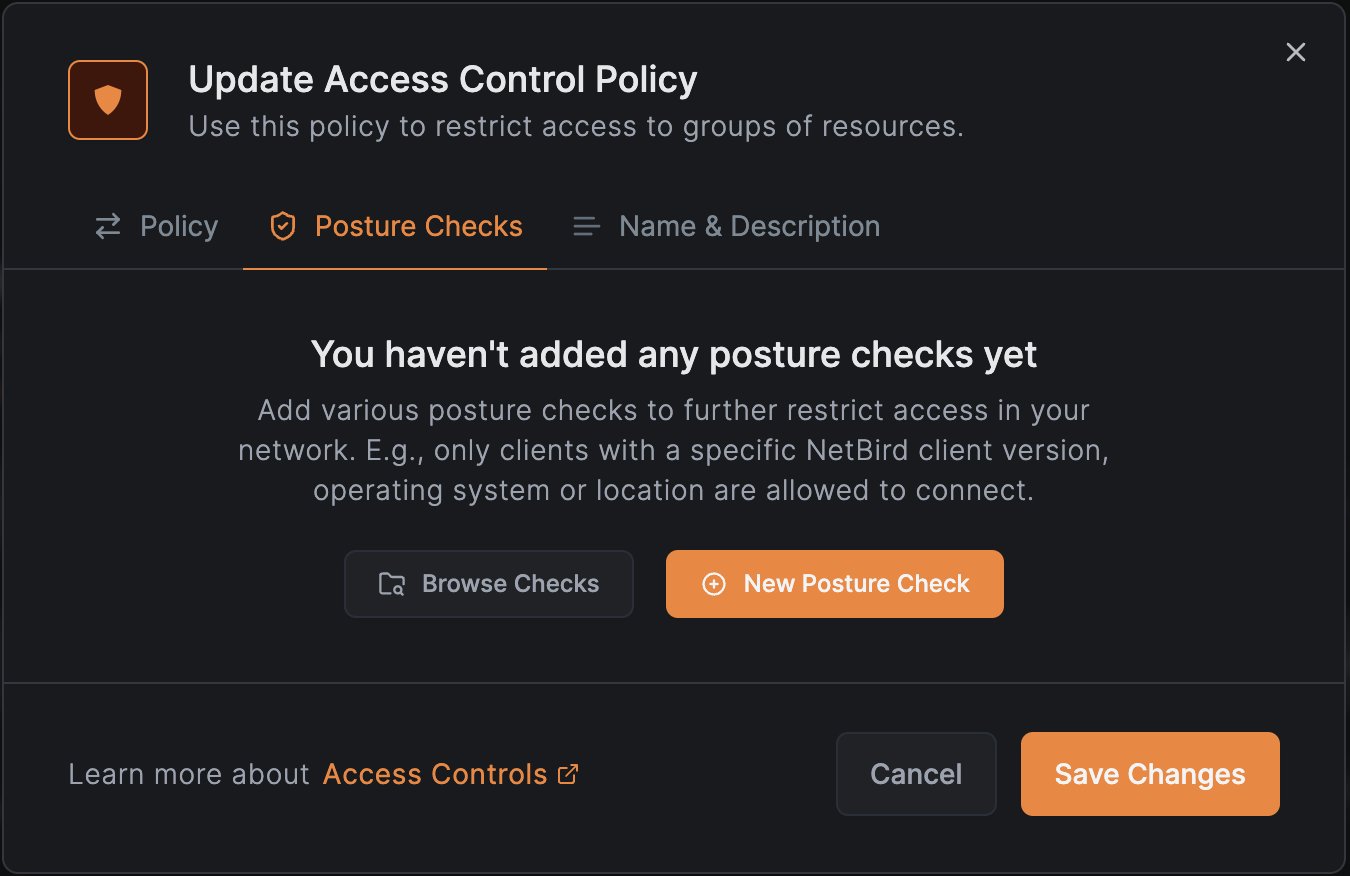
Within the Update Access Control Policy window, click Browse Checks.
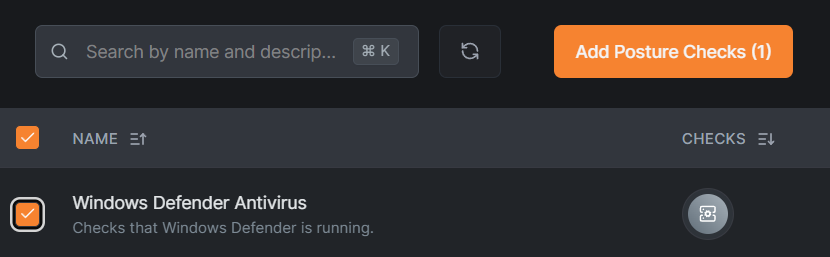
Select the checkbox for the antivirus process check and then select Add Posture Checks. On the next window, click Save Changes to save the policy updates.
Manage Your Network the Easy Way With NetBird
If you’ve made it this far, then you’ve successfully learned how to prevent devices that lack active antivirus software from connecting to your P2P network by creating a process check through NetBird’s Peers dashboard. The zero-configuration approach makes it easy to manage access policies, customize posture checks, and meet your network security goals.
We invite you to explore more security features available with NetBird's peer-to-peer network, like EDR integrations .
Stay tuned for more NetBird guides and tutorials to help you secure your network and simplify network management tasks.