
NetBird provides a fast and secure peer-to-peer mesh network with end-to-end encryption. By default, you install the NetBird agent on every machine—be it a developer laptop, container, VM, or server—and each device securely connects to others on the mesh, forming a zero-trust overlay network.
But what if you can’t install the agent on all your machines?
In real-world deployments, especially within enterprise environments, it’s common to encounter private infrastructure that doesn’t support custom software. IoT devices, printers, managed services (like AWS RDS), or legacy servers might not be compatible with NetBird. Even if they are, you may be mid-migration and still need secure access to entire LANs, VPCs, or office networks where many machines haven’t yet joined the NetBird network.
To address these scenarios, NetBird introduced the Networks feature —starting in version . With Networks, you can map private networks, route traffic through NetBird-enabled gateways, and grant granular access without needing to install NetBird on every internal machine.
This article explains why you might need full network access, how the Networks feature works, and how to configure it for your infrastructure.
Why Access an Entire LAN or VPC?
There are many real-world use cases where installing NetBird on every device simply isn’t feasible. Let’s examine the most common ones:
Partial or side-by-side migrations: If your organization is transitioning from traditional VPNs or firewall-based access control to NetBird, some machines might already be using the new setup while others are still pending migration. During this phase, users and services need uninterrupted access to systems that don’t yet run the NetBird agent.
Systems with OS limitations: Certain classes of devices—such as industrial machines, IoT endpoints, legacy Windows servers, and network printers—often don’t support installing agents. Similarly, you can’t install third-party software on most managed services (like Google Cloud SQL or AWS RDS).
Legacy networks: Older infrastructure may be too sensitive or fragile to modify. Admins may face compatibility issues or lack permission to install software due to vendor restrictions, outdated operating systems, or production-critical environments.
In all of these cases, granting secure, audited access without modifying every host becomes essential. This is where NetBird’s Networks feature offers a powerful solution.
Introducing the “Networks” Feature
Networks in NetBird represent a major architectural improvement over the earlier Network Routes concept. Rather than requiring you to set up individual routes per IP or domain, you can now create a logical representation of your internal network, assign one or more routing peers, and define resources inside that network—whether IP ranges, hostnames, or entire wildcard domains.
You can think of a Network as a container that includes:
- A set of internal resources you want to make accessible.
- One or more routing peers to bridge NetBird traffic into that private environment.
- Access control policies that define which groups of users or devices are allowed to reach which internal services.
This approach simplifies configuration, improves manageability, and provides more intuitive access control than the now-deprecated Network Routes feature.
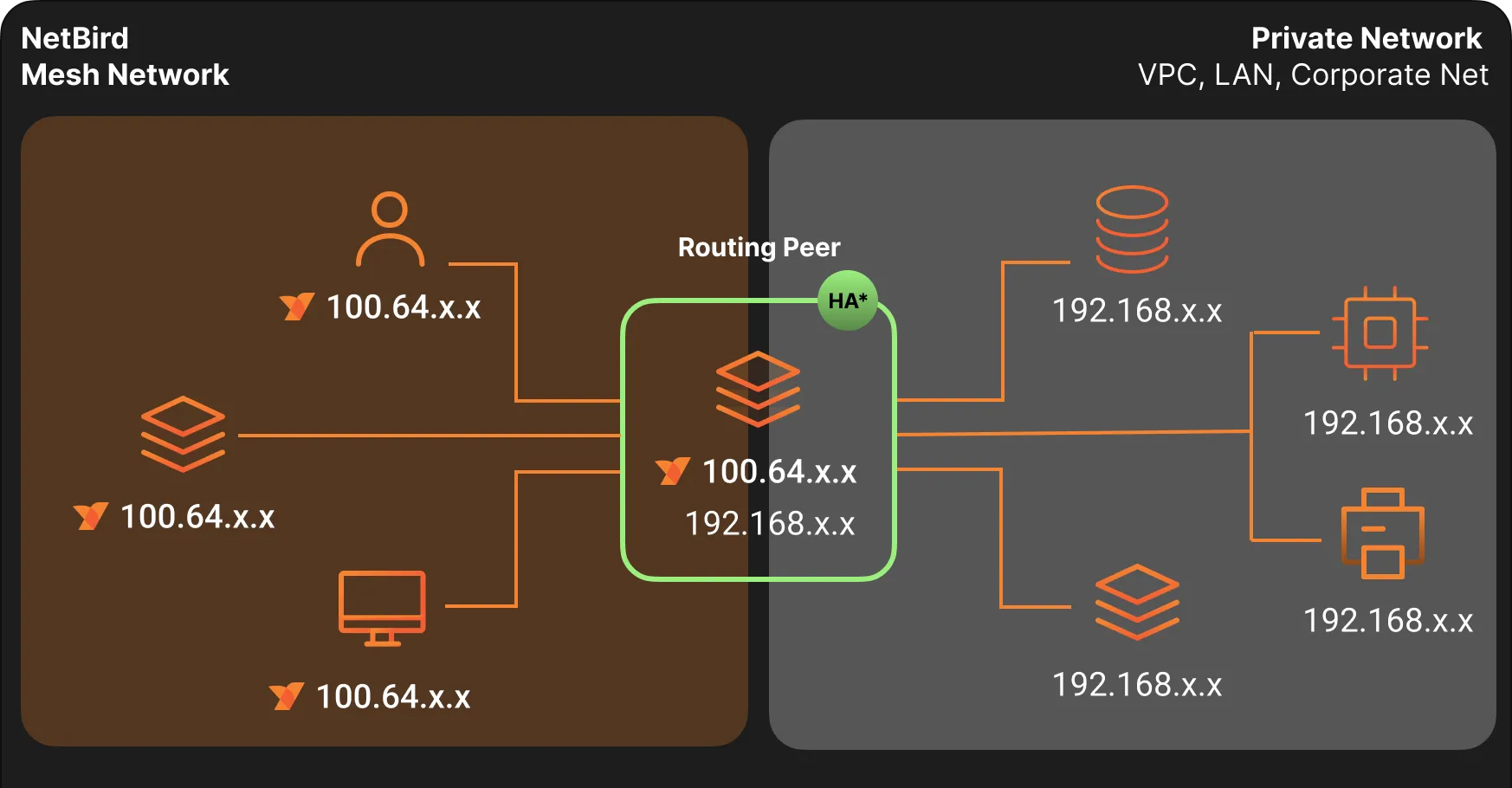
- *HA - NetBird Networks support High Availability mode, which is explained below.
What Are Routing Peers?
A routing peer is a NetBird-enabled device that sits inside your private infrastructure—such as an EC2 instance inside an AWS VPC or a Linux server on your corporate LAN.
Routing peers:
- Serve as the bridge between the NetBird overlay and your internal network.
- Forward traffic to machines that don’t run the NetBird agent.
- Can be configured to masquerade traffic, hiding the NetBird source IPs if needed.
- Can be grouped for high availability and will choose the peer with the best connection.
You can assign a single peer or an entire peer group as your routing peer(s). This makes it easy to scale and build resilient access points into your infrastructure.
What Are Resources?
A resource in NetBird defines an internal service or destination you want to make accessible through the mesh network. Resources can be:
- IP addresses (e.g., )
- CIDR blocks (e.g., )
- Domain names (e.g., )
- Wildcard domains (e.g., )
Resources are grouped and assigned descriptive names, making them easier to organize and manage. This logical grouping is especially helpful when creating access policies for different user teams.
What Is an Access Control Policy?
NetBird uses access control policies to define which users or devices can access which resources. Policies define:
- Source groups: users or peers requesting access.
- Destination groups: the internal resources.
- Protocols and ports: e.g., TCP/443, UDP/53, or all traffic.
- Optional posture checks for device compliance.
Policies can be unidirectional or bidirectional—they specify who can access what—and can be adjusted at any time via the dashboard. This gives you complete control over internal access without having to modify your firewalls or DNS servers.
Example: Secure Access to an AWS VPC
Let’s walk through an example to demonstrate NetBird's ability to securely expose individual internal resources—without opening access to an entire subnet or installing agents on the resource itself.
Scenario
- You have a PostgreSQL database hosted in Amazon RDS. It is accessible only from within your private VPC via its internal DNS name:
- Your DevOps team needs remote access to this RDS instance for operational tasks. Other employees should not have access to the database or the rest of the VPC.
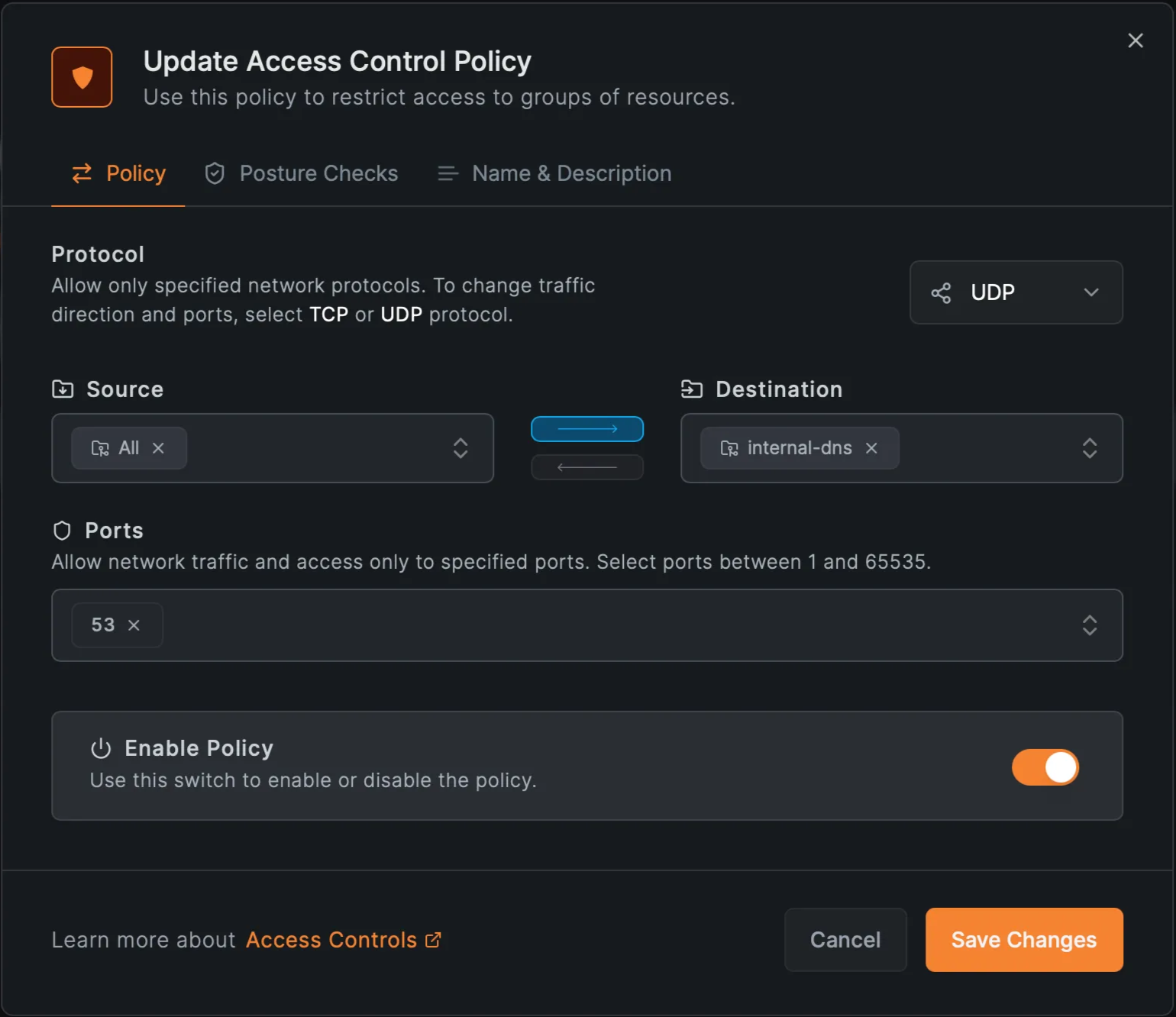
- All other employees should only resolve DNS via the internal servers
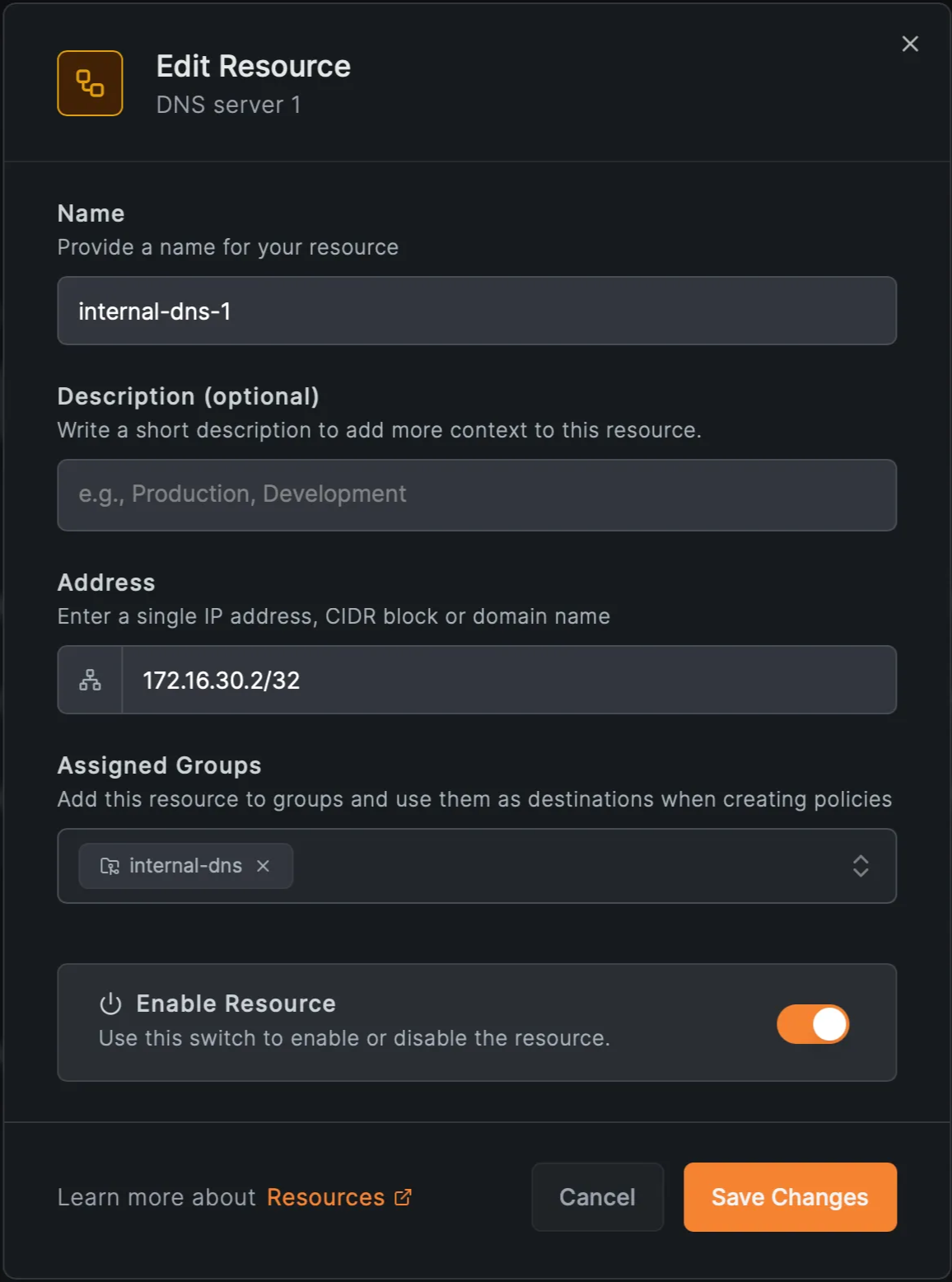
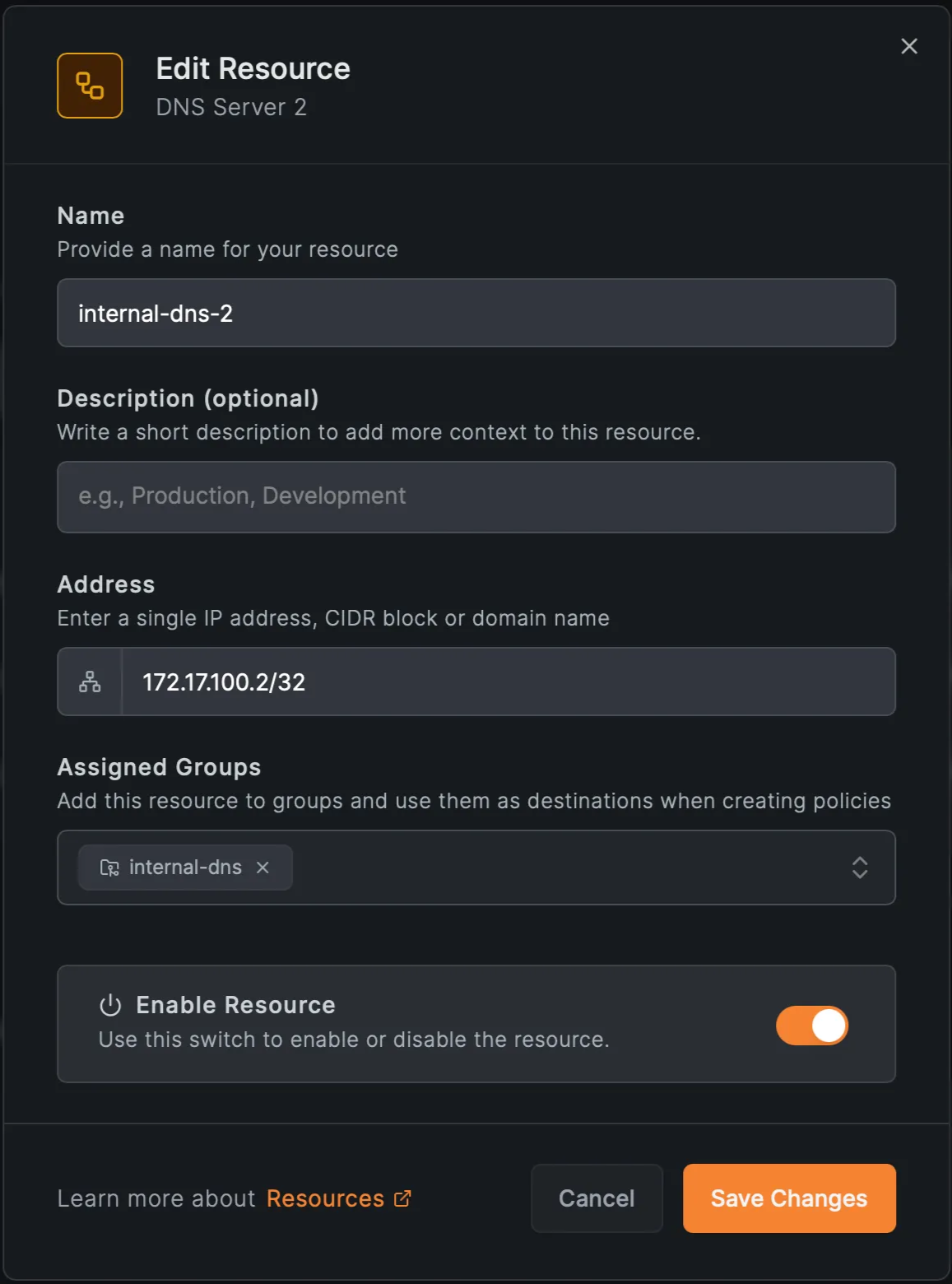
- Internal DNS servers run at and
Configuration Steps
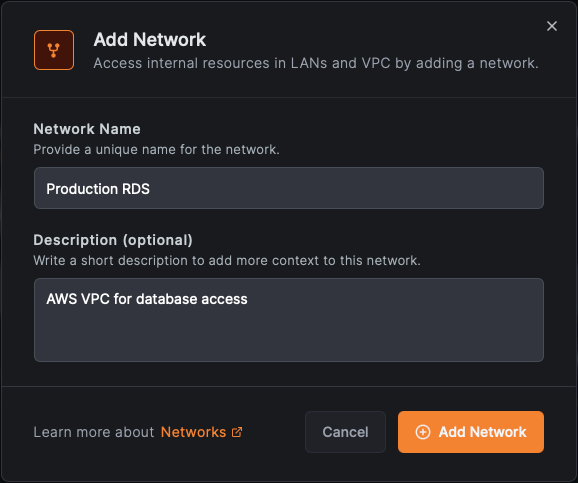
1. Create a Network
- Name:
- Description:
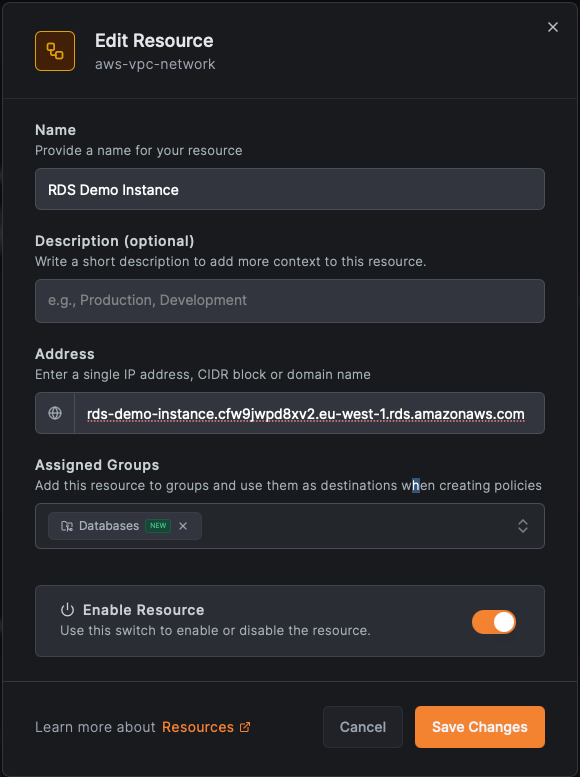
2. Add a Resource
- Name: RDS Demo Instance
- Domain
- Group: Databases
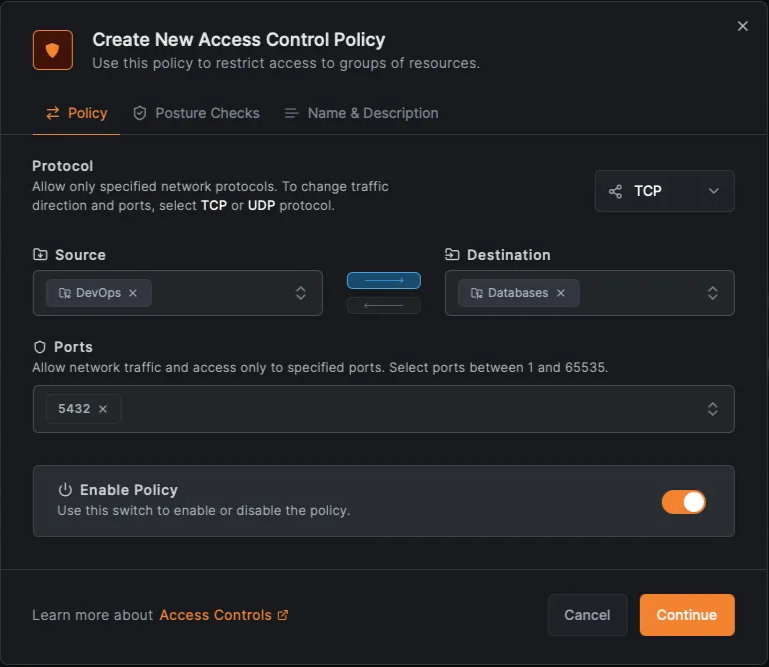
3. Create an Access Policy
Click Create Policy and define access for just the DevOps group:
- Source Group:
- Destination Group:
- Protocol:
- Ports: (default PostgreSQL)
You can also add posture checks or device trust constraints to further restrict access.
4. Create resources for the internal DNS servers
- IPs and (group: )
5. Create an access policy for the DNS resources
- Allow group access to only on
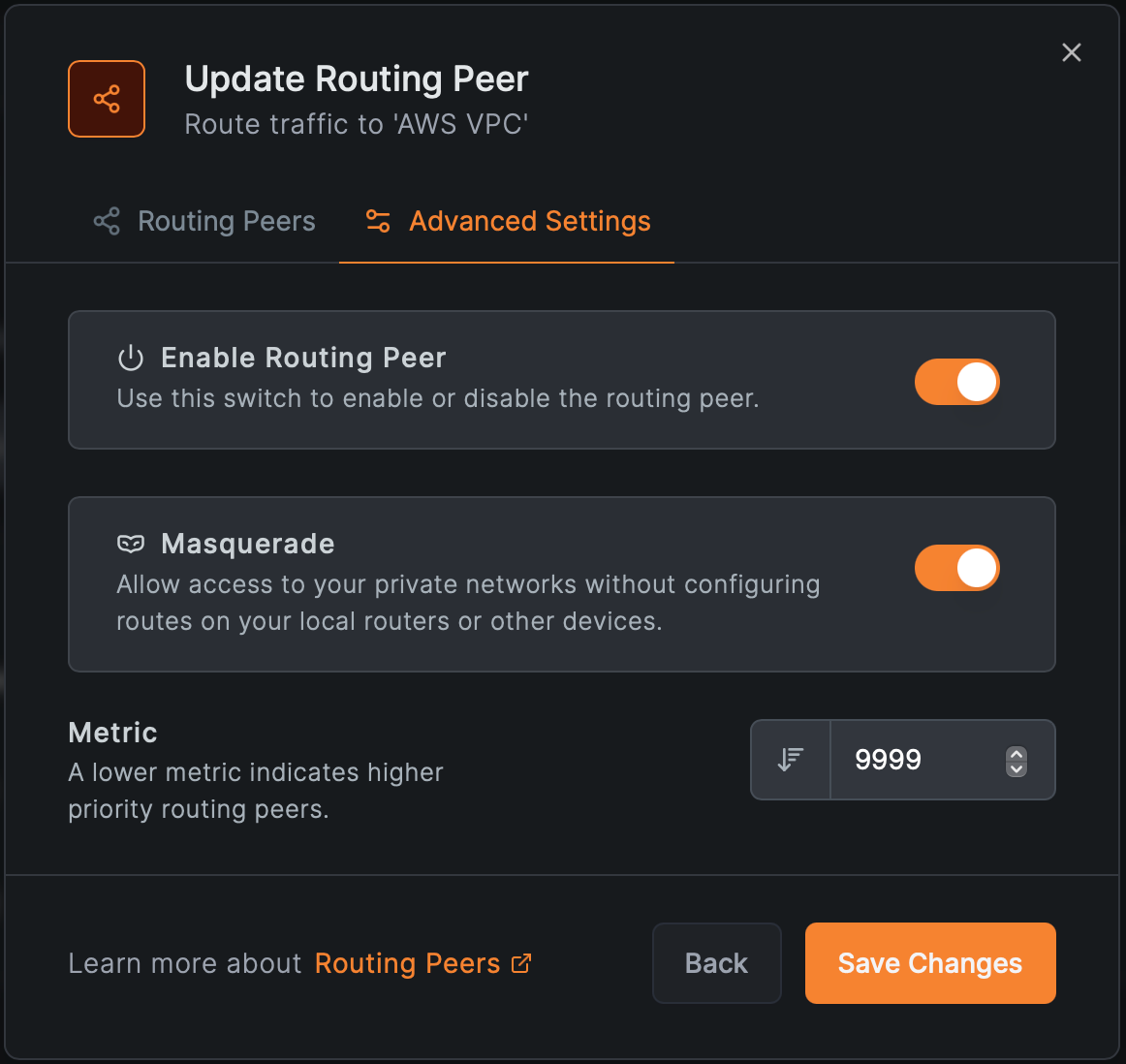
6. Add a Routing Peer
- Any machine(s) or virtual machine(s) with NetBird agent installed in the VPC
- Enable masquerade if internal routers can’t route NetBird IPs

Outcome
- Only devices in the group can resolve and access the RDS instance
- Traffic is routed securely through the designated routing peer
- The rest of the VPC remains completely hidden
- Other users (even if running NetBird) cannot access this database due to missing policies
That’s it! Now users only see the resources they are allowed to access, and DNS resolution flows securely through your internal infrastructure. This example showcases NetBird’s ability to granularly route and authorize access to internal services based on identity, protocol, and destination domain, all without altering the VPC firewall or installing agents on the RDS instance.
Wildcard and Domain-Based Routing
In many enterprise environments, services are addressed by domain name rather than static IPs. Load balancers, DNS-based failover, and dynamic scaling make it impractical to hardcode IP routes.
NetBird supports both specific domains and wildcard domains :
- Access to by the Finance team.
- SSH access to for AI model training.
- Dev environments under .
When DNS wildcard routing is enabled, the routing peer—not the client—resolves domain names. This change from the legacy Network Routes behavior allows for:
- Tighter access control policies.
- Better DNS management for internal environments.
- Seamless integration with your private DNS infrastructure.
High Availability and Redundancy
You can assign multiple routing peers or entire peer groups to each Network. NetBird handles:
- Load balancing traffic across peers.
- Automatically failing over if one peer goes down.
- Prioritizing routes based on metrics.
When there are 2 or more routing peers for a network, this will enable the High Availability feature. This ensures that remote access remains reliable, even during maintenance or unexpected failures.
Masquerading and Priority
The masquerade setting hides NetBird peer IPs behind the routing peer's IP when accessing internal networks. This is useful if:
- Internal routers can’t route to NetBird’s IP range.
- You want to limit visibility of the overlay network.
Additionally, each routing peer can have a metric, allowing you to control which peer is preferred when multiple options exist (lower metric = higher priority).
Comparison with Network Routes
While Network Routes still function for legacy setups, we recommend migrating to Networks , which offer:
| Feature | Networks | Network Routes |
|---|---|---|
| Simplified access control | ✅ | ❌ (manual setup) |
| Wildcard domain support | ✅ | ❌ |
| Resource-level editability | ✅ | ❌ |
| Peer groups for HA | ✅ | ✅ |
| DNS routing at gateway | ✅ | ❌ |
| Exit-node support | 🚧 (planned) | ✅ |
| Site-to-site routing | 🚧 (planned) | ✅ |
See the full migration guidance in NetBird's documentation .
Getting Started
- Open the NetBird dashboard.
- Navigate to the Networks tab.
- Click Add Network and walk through the guided wizard:
- Add resources (IP, domain, wildcard).
- Define access control policies.
- Add posture checks for additional security and compliance.
- Assign routing peers.
Need help? Refer to these official guides:
Conclusion
NetBird’s Networks feature is a powerful, scalable, and secure way to access internal infrastructure without requiring you to install agents on every device. Whether you’re connecting to cloud VPCs, legacy data centers, or restricted environments, Networks provide a single, unified mechanism for routing, access control, and observability.
Compared to the older Network Routes feature, Networks offer clearer configuration, more flexible access, and better future compatibility. If you're managing secure access in a hybrid or segmented environment, Networks should be your go-to solution.