
If you're self-hosting and pulled the v0.72 release last week, you've already met dashboard v2.39.0. As of this week it's live on NetBird Cloud too, so everyone is now looking at the same refreshed UI. I gave it a quick mention in the v0.72 post , but there's enough going on here that it deserves a proper walkthrough.
The short version: nothing about how NetBird works changed, but a lot about how you find things did. The sidebar got reorganized around how people actually use the product, the noisiest tables got decluttered, and a few things that were always harder to find than they should be now live where you'd expect them.
Peers Split Into User Devices and Servers
The biggest change is that the Peers section is now two views: User Devices and Servers. Laptops and phones with a real person behind them live under User Devices, while VMs, autonomous agents, and other unattended machines, the ones typically enrolled with a setup key, live under Servers. The old URL still works and redirects to User Devices, so existing bookmarks won't break.
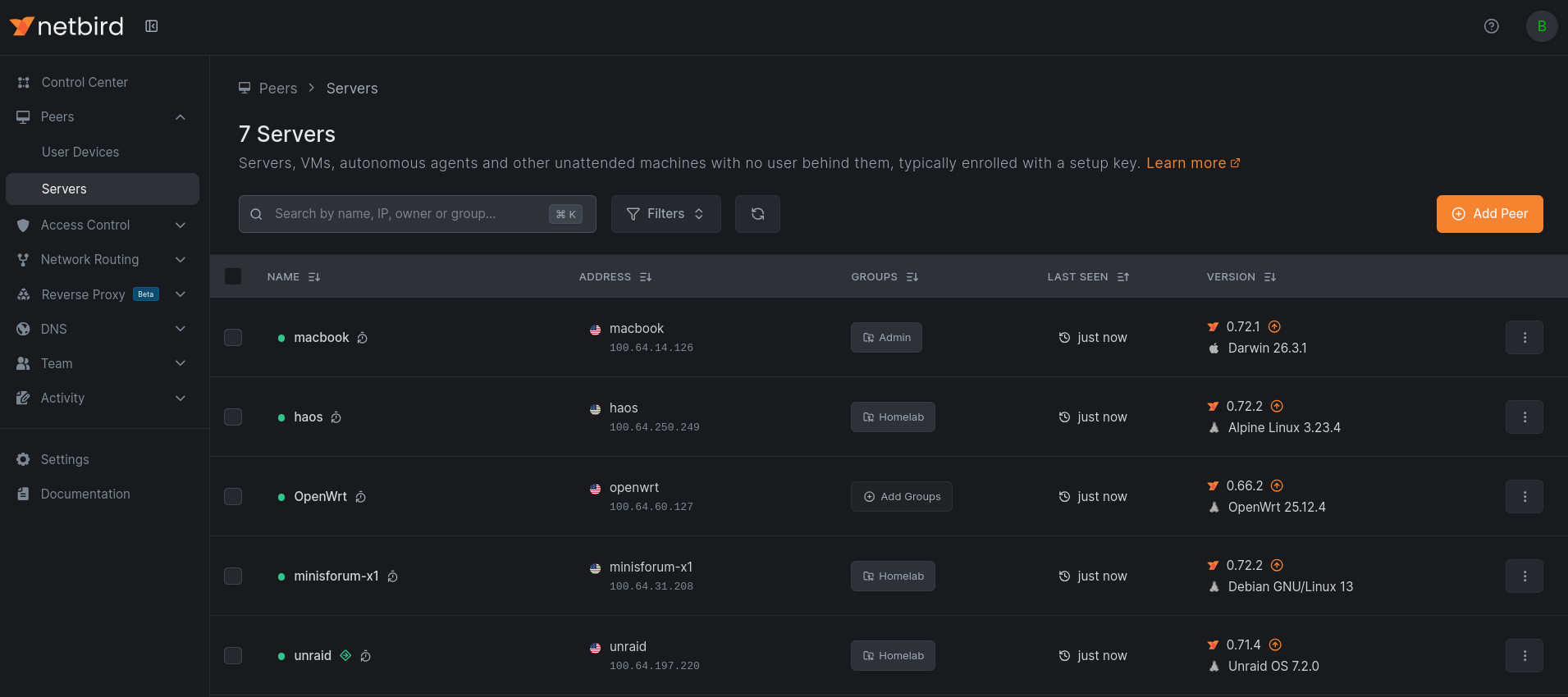
These two groups have always been different things that happened to share a table. You troubleshoot a colleague's laptop differently than you audit a fleet of routing peers, and now the dashboard reflects that.
The split follows how the peer joined your network. Devices added by someone logging in through your identity provider belong to that user, so they land in User Devices. Peers enrolled with a setup key have no user behind them, so they show up under Servers. Worth knowing: that's the whole rule, so a laptop you onboard with a setup key will appear under Servers. If you want a machine treated as a user device, enroll it through a login.
The peers table itself got tidied up along the way:
- The inline Connect column is gone. SSH and RDP now live in the three-dot action menu, shown for online, non-mobile peers.
- The Groups column collapses into a single count badge, with the full list still on hover and the same edit affordances as before.
- DNS labels in the address cell are shortened for readability, and copying still grabs the full label.
- Control Center dropped its Beta badge.
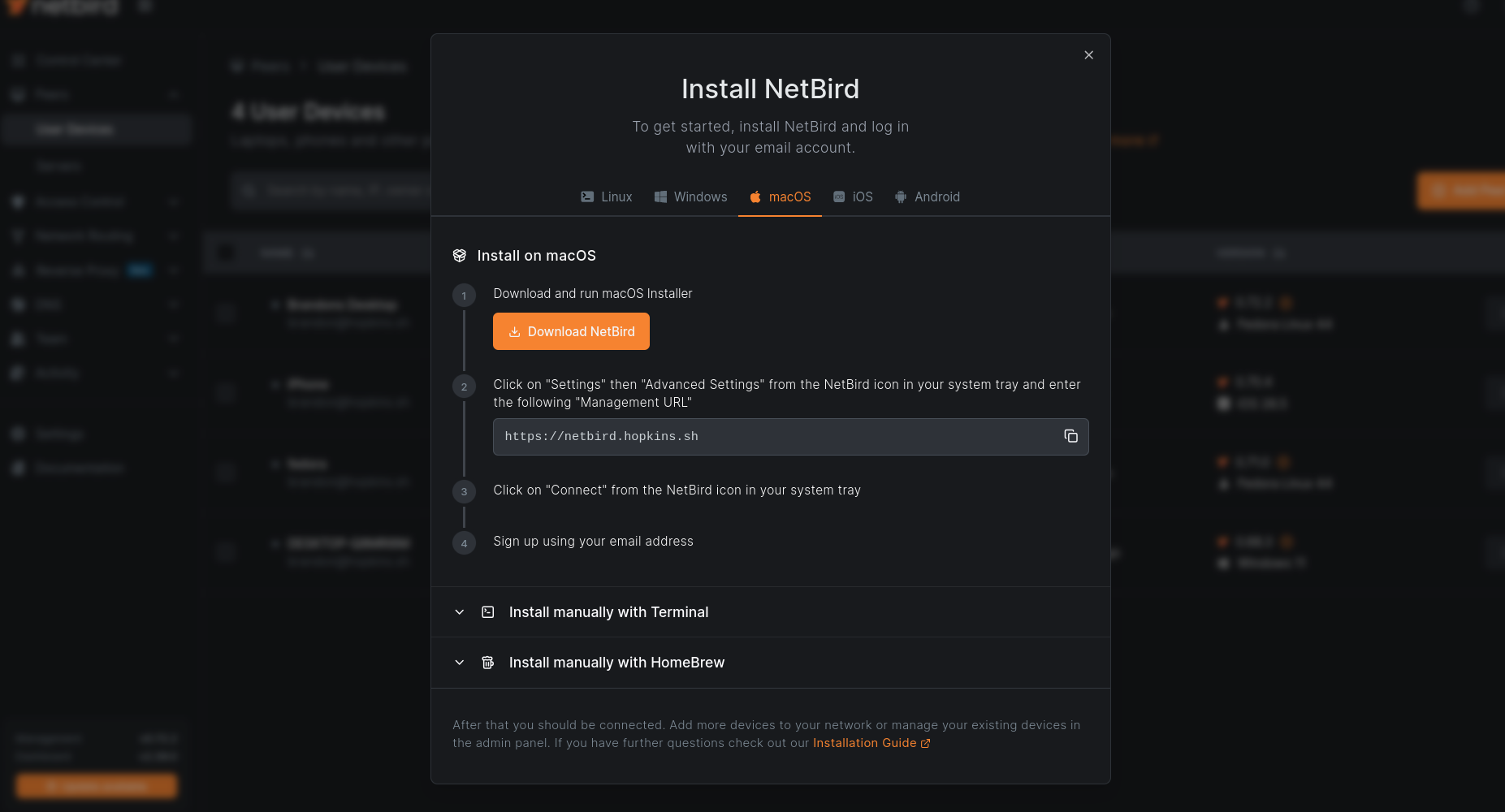
The Install NetBird modal is now tailored to the audience too. Open it from User Devices and you get the mobile platforms with Docker hidden.
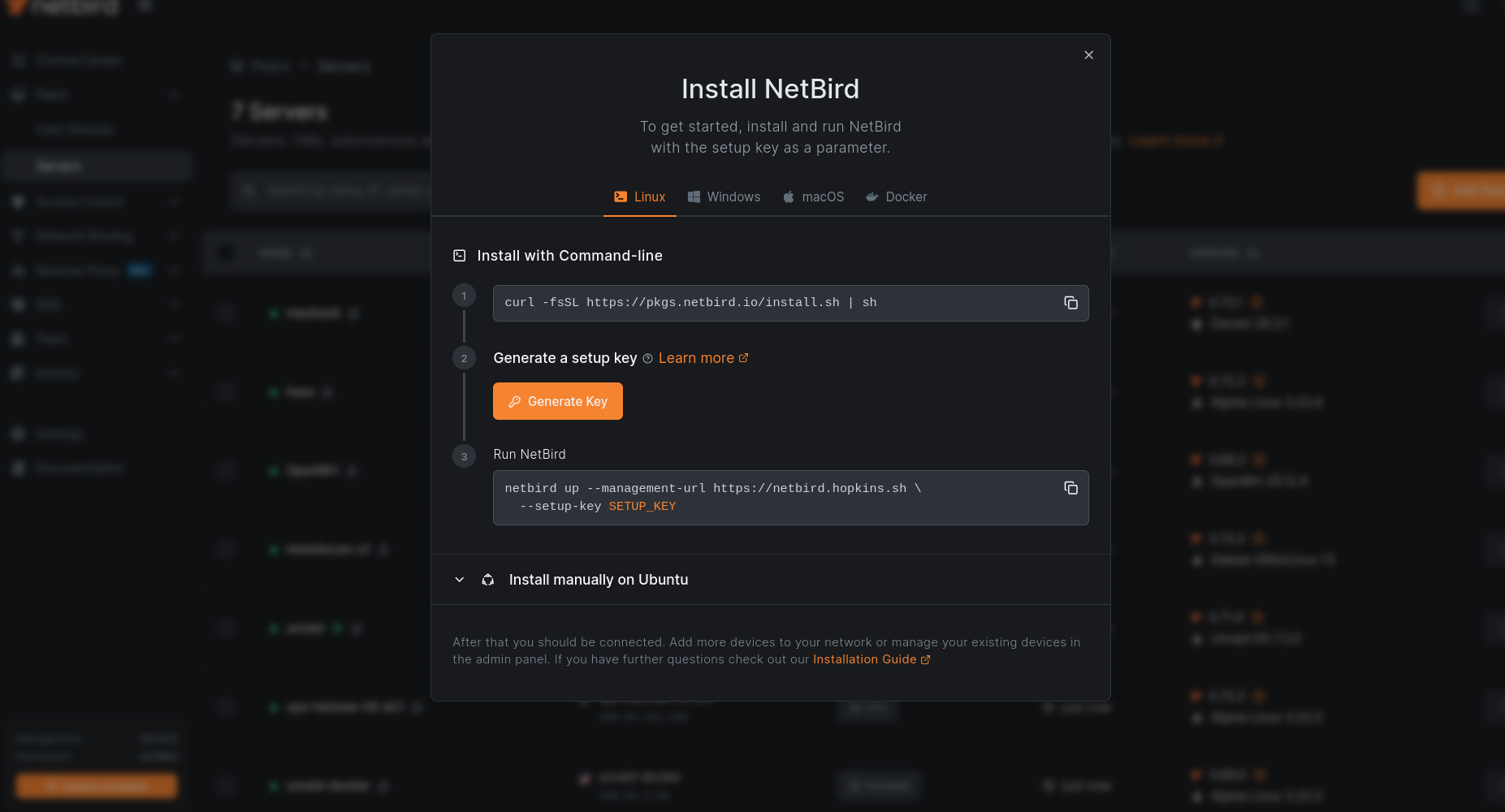
Open it from Servers and it's the opposite: Docker shows up, mobile goes away, and there's a new inline step that generates a one-off setup key (24-hour expiry, no auto-groups) right in the modal. The generated key drops straight into every OS tab's command, so enrolling a server is a single copy-paste instead of a side trip to another page.
Setup Keys Moved to Settings
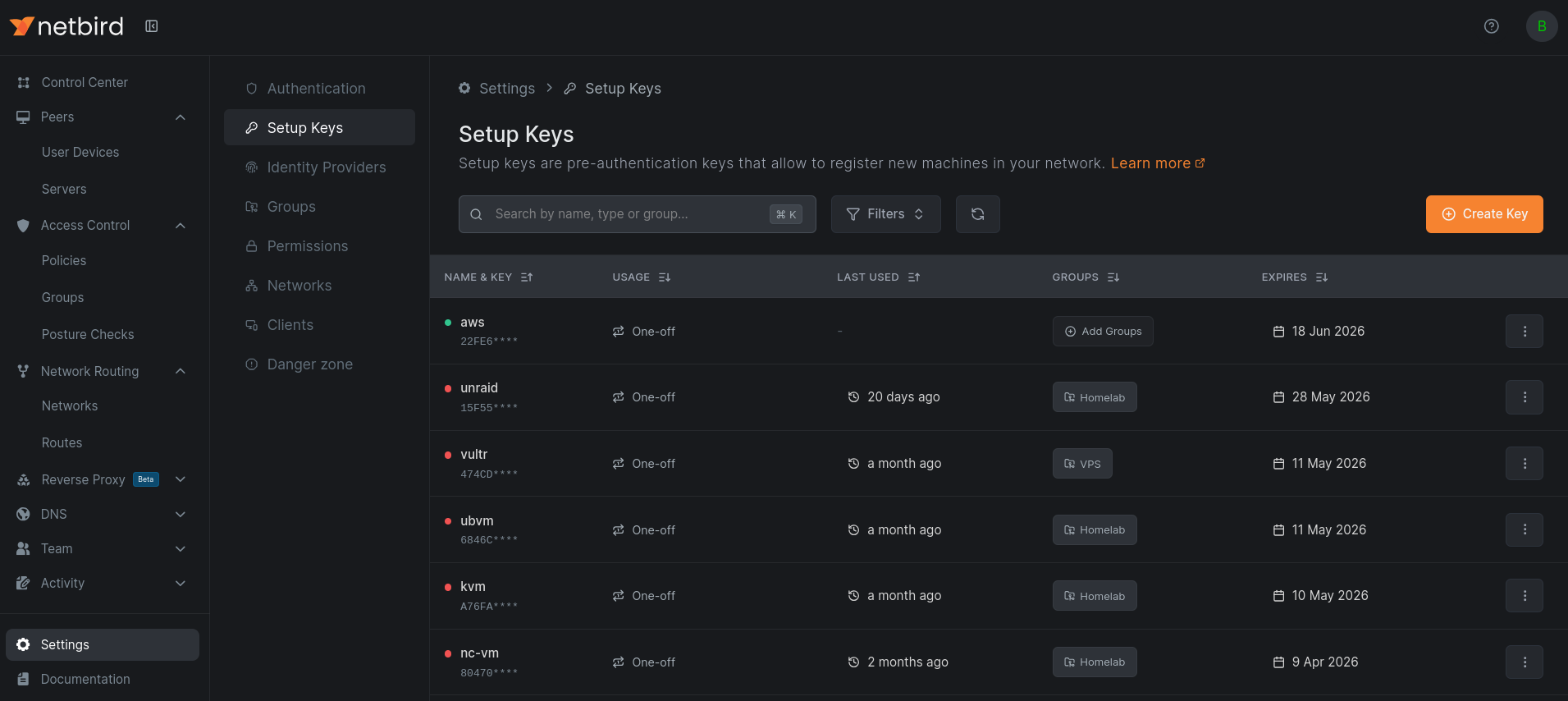
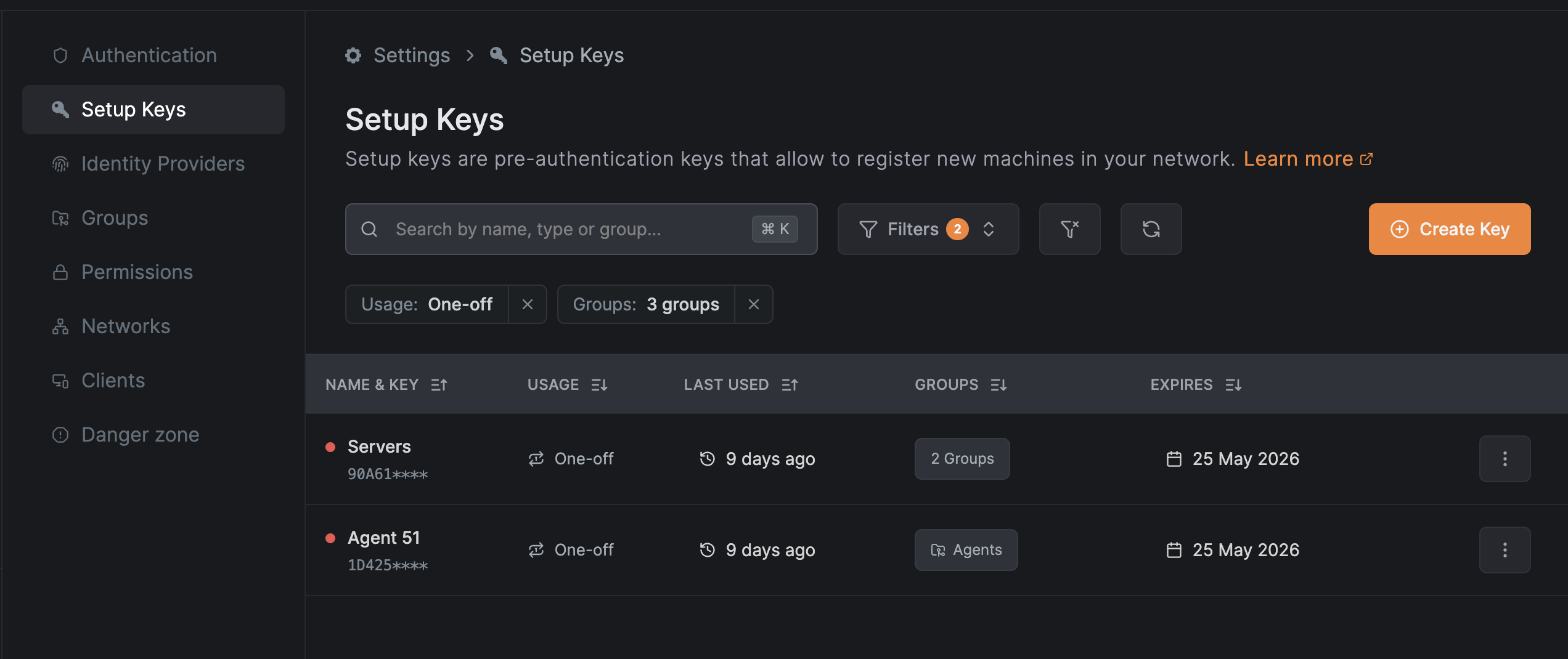
Speaking of setup keys, they're no longer a sidebar entry under Peers. They now live in a dedicated Setup Keys tab on the Settings page, which is a better fit: a setup key is account configuration, not a thing on your network. The old route redirects to the new tab, and the Servers page links directly to it from its description, so the path from "I need to enroll a machine" to "here's a key" is still short.
Networks and Routes Under Network Routing
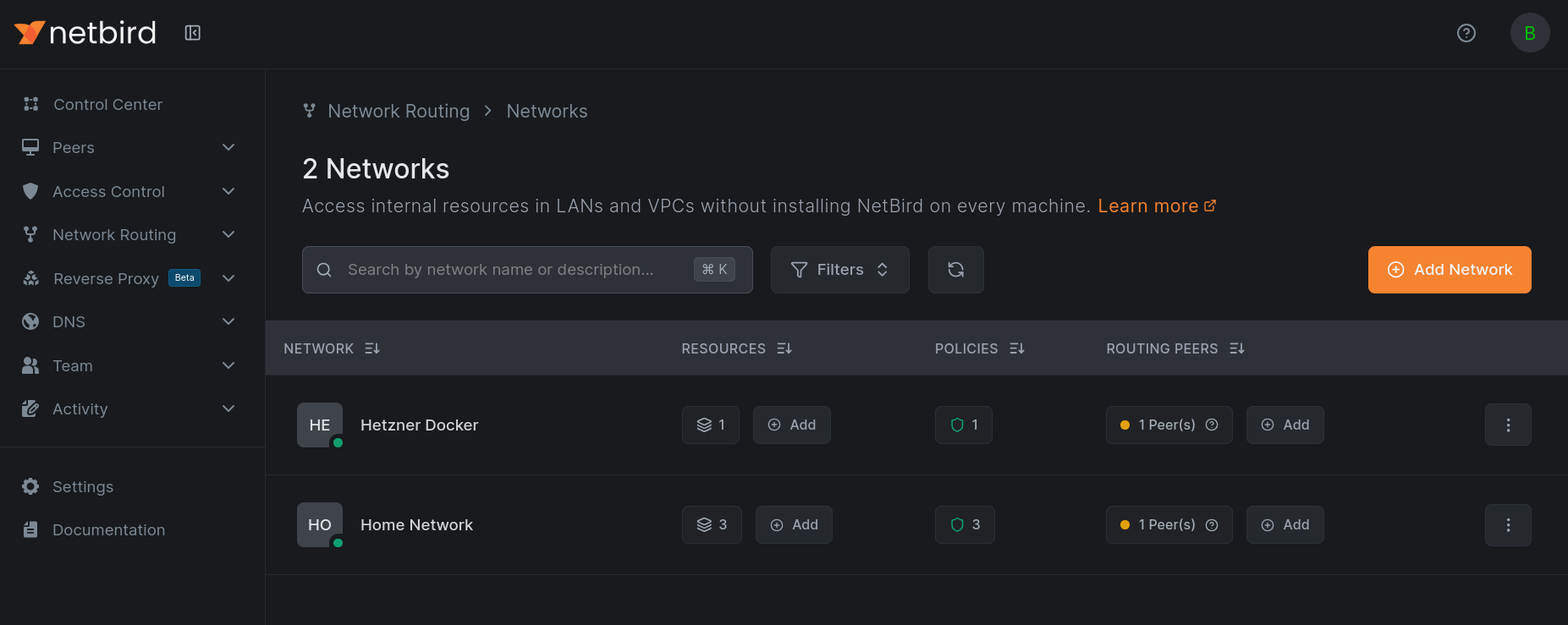
Networks and Network Routes used to sit next to each other as separate top-level sidebar items, which always felt slightly off since they're two approaches to the same job: getting traffic to resources that don't run a NetBird client. They're now nested under a collapsible Network Routing parent, with breadcrumbs updated to match and active-state highlighting that follows you correctly through the hierarchy.
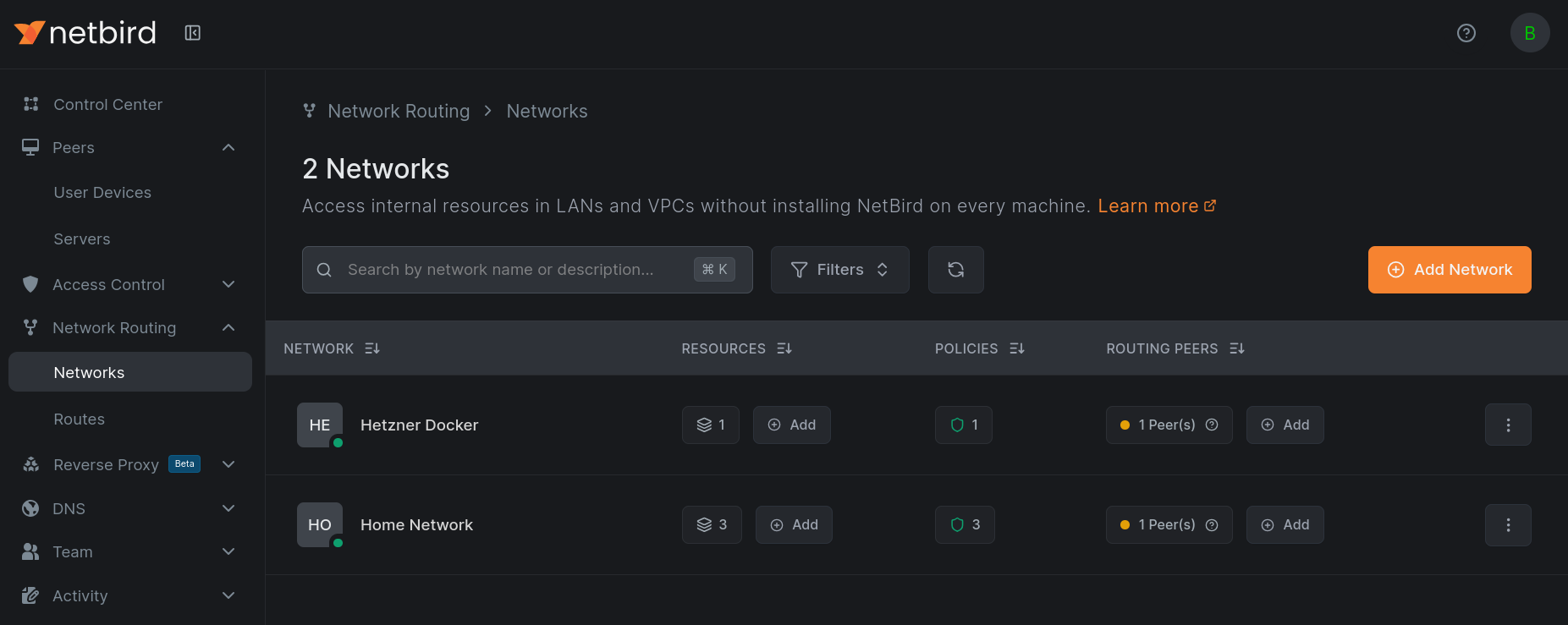
Between this, the Peers split, and setup keys moving out, the collapsed sidebar is down to a clean set of top-level sections: Control Center, Peers, Access Control, Network Routing, Reverse Proxy, DNS, Team, and Activity.
Chip-Based Filters Across Every Table
The other half of this release is a sweep across basically every table in the product. Filters are now unified chips that sit above the table: pick a status, a group, a user, or type a value, and it shows up as a removable chip with a per-table reset to clear everything at once. The same pattern applies everywhere, peers, setup keys, access control, DNS, networks, reverse proxy, team, events, so once you've learned it in one place you know it everywhere.
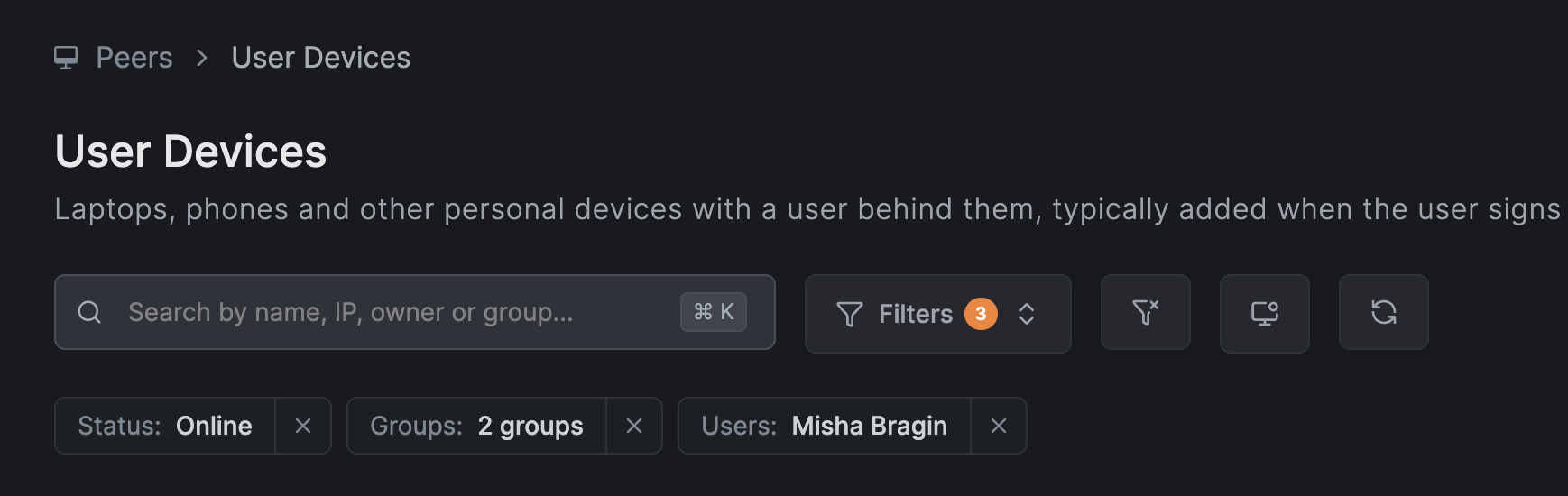
Alongside the filters, the tables themselves got more compact. Row actions moved into three-dot dropdowns, dates render shorter, buttons and labels got tightened ("Create Key", "Add", "Resend"), disabled rows are dimmed, and most tables now default to 25 rows per page so you see more data without scrolling.
If you're on NetBird Cloud, there's nothing to do, you already have it. Self-hosters get it as part of the v0.72 release, dashboard image .
Learn More and Connect
- Full changelog: dashboard v2.38.1...v2.39.0
- Release notes: dashboard v2.39.0 on GitHub
- NetBird v0.72: Private Services and Bring Your Own Proxy
- Try NetBird: Get started at netbird.io/pricing
- Join the community: Star us on GitHub · Follow us on X